How to Set Up a Two-Factor Authentication (2FA)
| Notice |
Once you activate a new token (orange button "Roll Out NEW SOFTWARE-Token (TOTP)"), any existing token will become invalid immediately. When you print out the page with the QR code and store it safely, you can scan the QR code again, for instance if you have lost your mobile device. Alternatively, DBS will create a new one-time password for you. |
You set up your access for the two-factor authentication by scanning a QR code with your mobile device.
Alternatively, you can enter the line that starts "secret=…" in your password generator.
Example: How to scan the QR code by means of the "Google Authenticator"
-
Click the orange button "Roll Out NEW SOFTWARE-Token (TOTP)" in the main menu.
-
On the screen you will see a page that has a QR code.
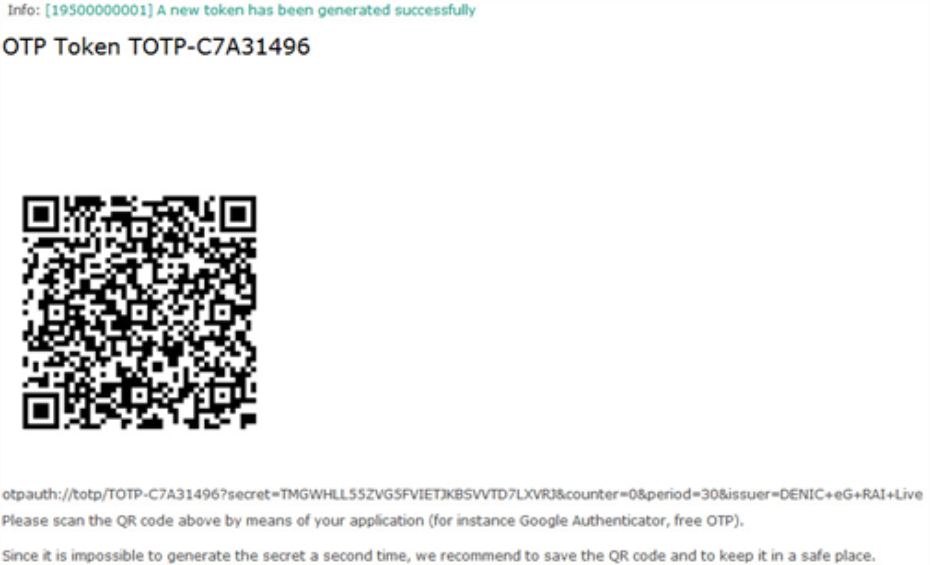
Figure 1: Token webpage displaying a QR code
-
Start the "Google Authenticator" app.
-
Tap on "Scan barcode".
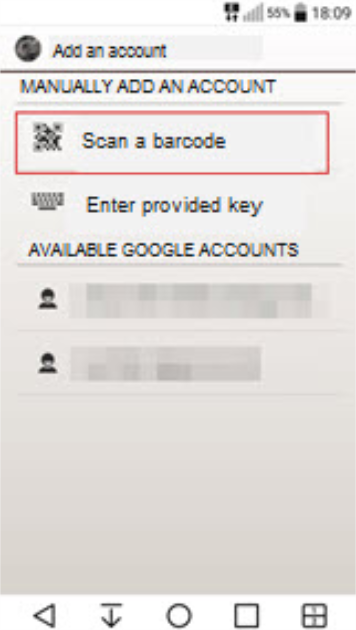
Figure 2: Calling the QR code scanner
-
Hold the camera of the mobile device at the QR code displayed.
-
The password generator will take over the token and generate a new time-based one-time password every 30 seconds, which is displayed as a six-digit code.
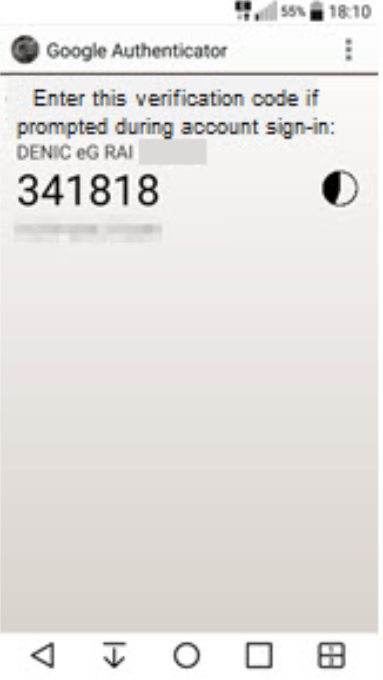
Bild 3: One-Time Password of limited validity
-
When you log in to RAI, enter this code in the "One-Time Password" field.